Guide · Background remover
How to Remove the Background from an Image for Free
To remove the background from an image, open the Background Remover and upload a JPG, PNG, WebP or HEIC photo. The background is removed automatically, usually in 5 to 20 seconds. Check the result, fix any mistakes with Erase and Restore, then download a transparent PNG. It is free, needs no account and adds no watermark.
On this page
- What background removal does
- Remove a background in four steps
- Fix the edges with Touch up
- Change the background
- Download a transparent PNG, JPG or WebP
- Remove backgrounds from several photos at once
- Supported formats and limits
- Common problems and how to fix them
- Tips for a cleaner cut-out
- On a phone or tablet
- Questions
What background removal does
Background removal separates the main subject of a photo (a person, a pet or a product) from everything behind it. The background becomes transparent, so you can put the subject on a new colour, a different photo or a design.
On screen, transparent areas are shown as a grey and white checkerboard. The checkerboard is not part of the file; it only marks where the image is see-through. To keep that transparency, save the image as a PNG or WebP. A JPG always fills the background with a colour.
Remove a background in four steps
Add your photo
Open the Background Remover and click Upload Image, or drag a photo onto the upload area. You can also paste an image with Ctrl+V (⌘+V on a Mac), add one from a link with URL, or use Take Photo to take a picture with your camera. No photo at hand? Try one of the sample photos under the upload area.
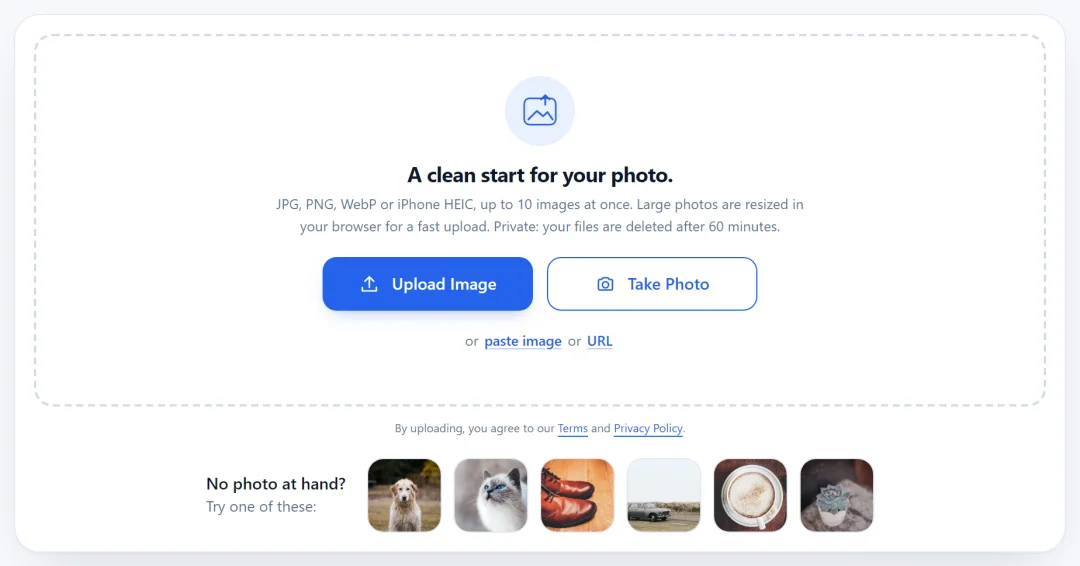
Wait a few seconds
The photo is uploaded and the background is removed automatically. This usually takes 5 to 20 seconds. When many people are using the tool, your photo waits briefly in a queue. Keep the page open until the result appears.
Check the cut-out
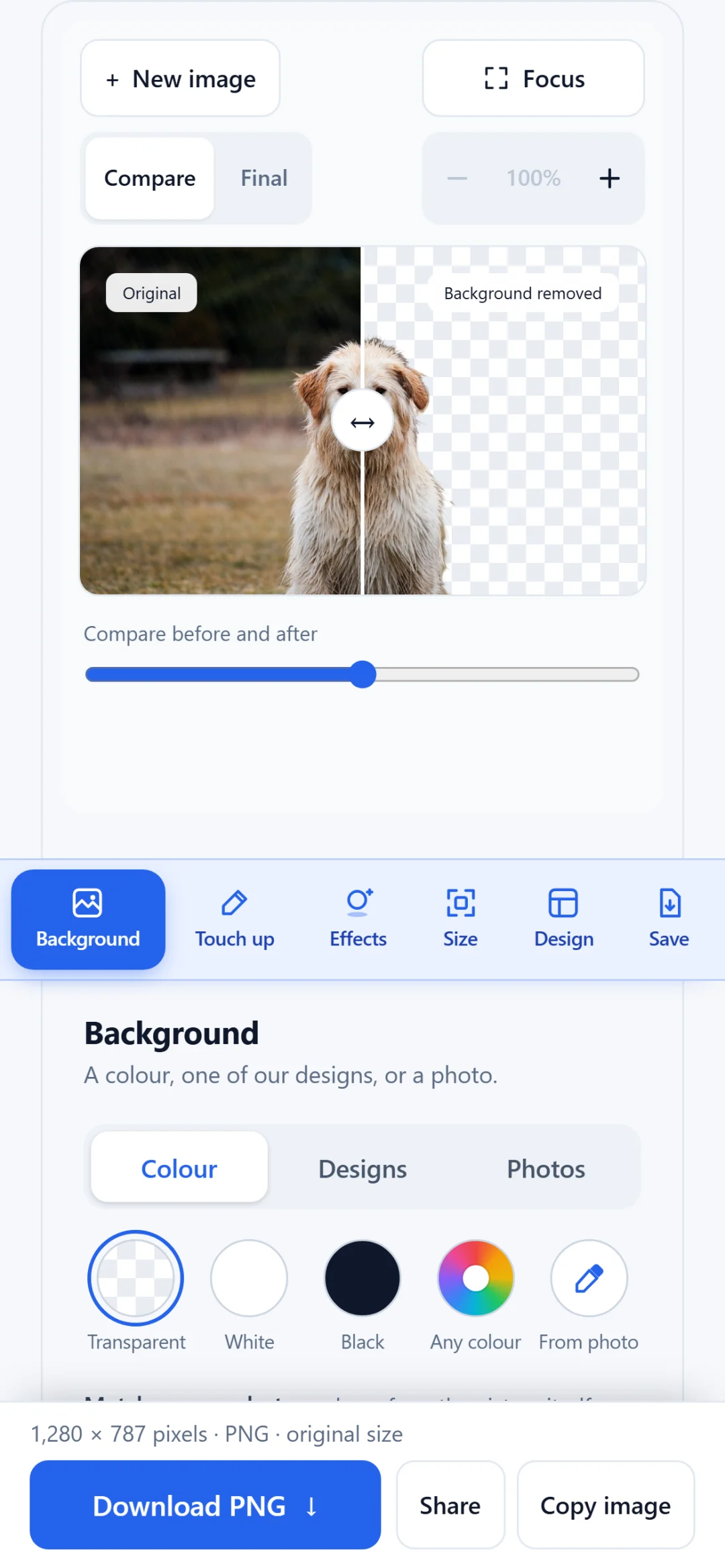
The result opens in Compare view: drag the slider to see the original and the cut-out side by side, and use + to zoom in on edges such as hair. Final image shows the picture exactly as it will be saved. The tools for changing the result are in the tabs next to the picture (under it on a phone): Background, Touch up, Effects, Size, Design and Save.
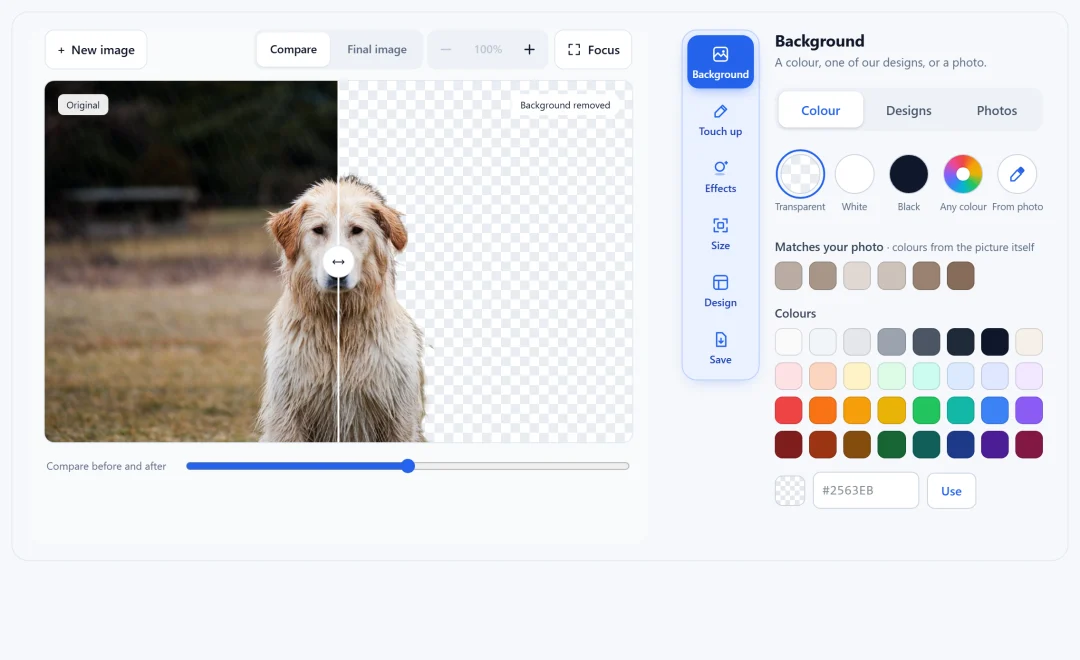
Download your image
Click Download PNG. The PNG keeps the transparent background and, by default, your photo's original size. The note next to the button shows the size and format you will get.

Fix the edges with Touch up
The AI does most of the work, but no automatic tool gets every photo right. If part of the subject was removed, or some background was left behind, open Touch up and paint over the problem.
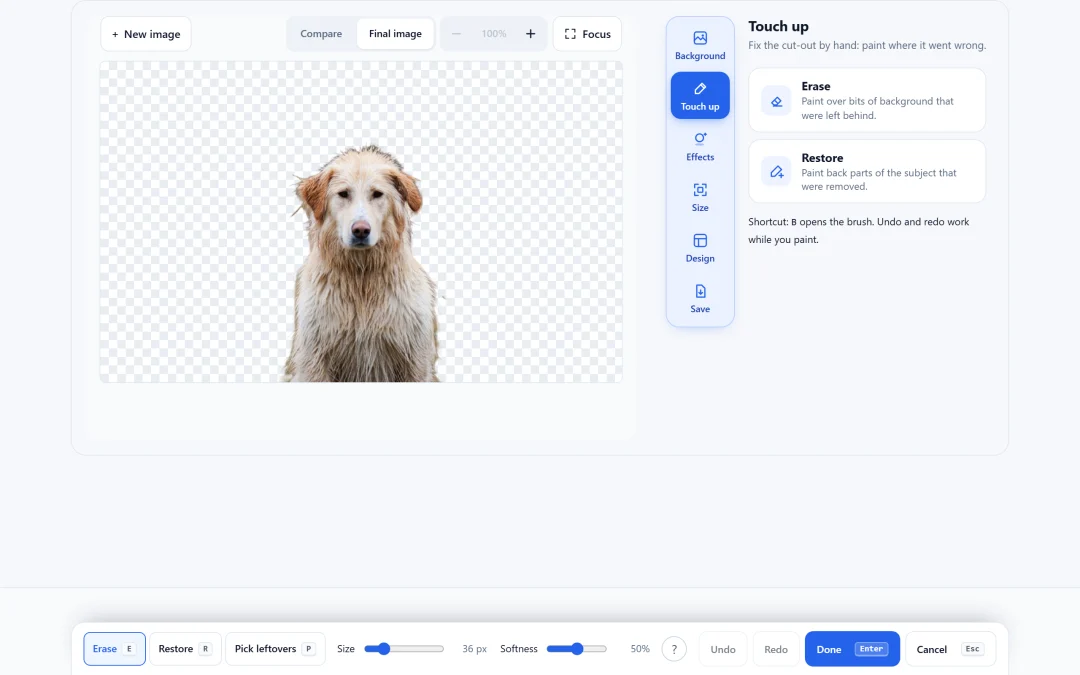
| Tool | What it does | Use it when |
|---|---|---|
| Erase | Paints parts of the picture away | Bits of background were left behind |
| Restore | Paints the original photo back | Part of the subject was removed, such as a hand, a shoulder or hair |
| Pick leftovers | Finds loose pieces of background; tap one to remove it, or use Remove all highlighted | Small specks remain around the subject |
- Size and Softness set the brush. A soft brush blends the edge; a hard brush cuts cleanly.
- Only see-through parts limits Restore to areas the AI kept at least partly. It fixes see-through patches inside the subject without bringing the old background back.
- Undo and Redo step through your strokes (Ctrl+Z works too). Done keeps the changes; Cancel drops them.
- Keyboard: B opens the brush; E, R and P switch between Erase, Restore and Pick leftovers; Enter is Done and Esc is Cancel.
Change the background
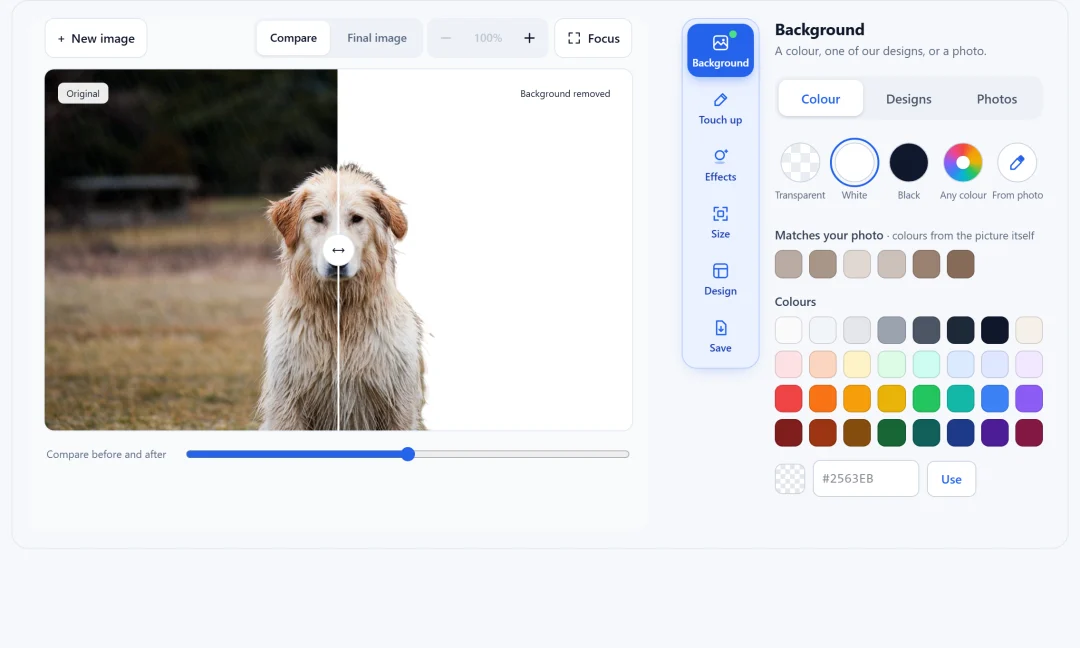
Open Background to fill the transparent area:
Colour offers Transparent, White, Black, any colour you choose, colours picked from your own photo and a ready-made palette. Designs has backgrounds drawn by RMBG.me. Photos lets you use a photo of your own, choose one of the free photos, keep the Original background or Blur original.
For product listings, the white background page starts with white already selected.
Download a transparent PNG, JPG or WebP
Open Save to choose the file type before you download.
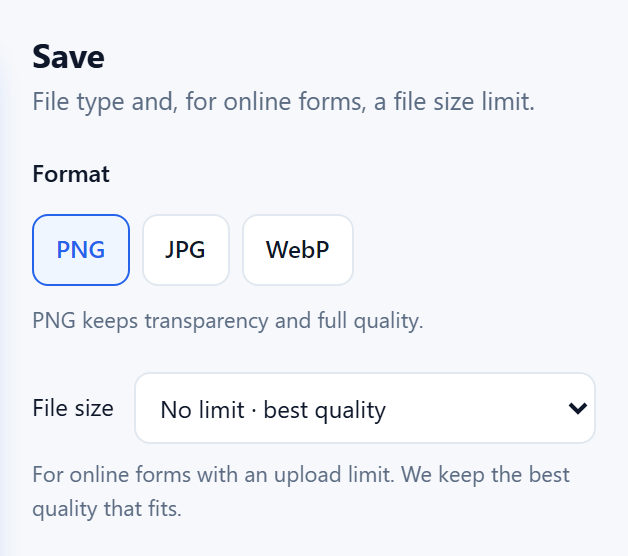
| Format | Transparent background | Best for |
|---|---|---|
| PNG | Yes | Logos, stickers, product cut-outs, anything you will place on another background |
| WebP | Yes | Websites: smaller files that keep transparency |
| JPG | No: a transparent background becomes white | Photos with a solid background, and forms that accept only JPG |
File size is for online forms with an upload limit, for example under 200 KB: RMBG.me keeps the best quality that fits. Size limits work with JPG or WebP, so choosing one while PNG is selected switches to JPG.
By default your download keeps the photo's original size, up to 16 megapixels (6 megapixels on devices with little memory). For a big photo, Save also offers Smaller file, which saves at the size the picture was processed at instead. To make a file smaller later, use Compress Image.
Remove backgrounds from several photos at once
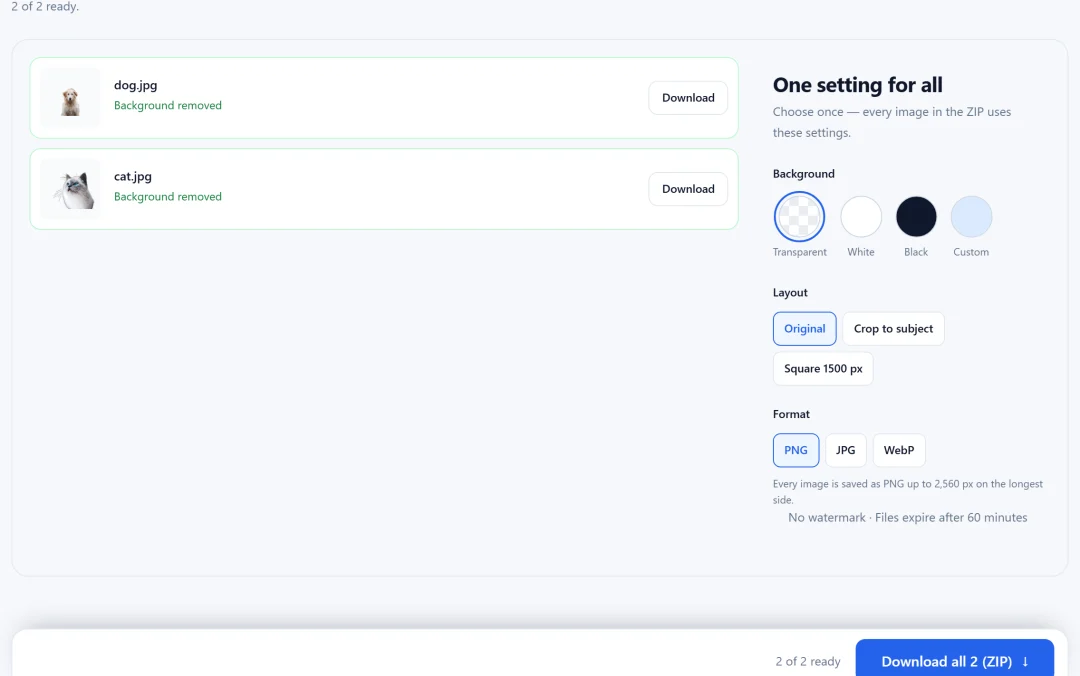
Select up to 10 photos together, or drop them onto the upload area at once. They are processed one after another, and each one appears in the list with its own Download button.
Under One setting for all, choose the background (transparent, white, black or a custom colour), the layout (original, crop to subject or a 1500 px square) and the format, then click Download all (ZIP). In this mode, images are saved up to 2,560 px on the longest side.
Supported formats and limits
| Photos you can upload | JPG, PNG, WebP and HEIC |
|---|---|
| Photos at once | Up to 10 |
| Large photos | A copy up to 2,560 px on the longest side is sent for processing, so it uploads quickly; your download still uses the full-size photo |
| Download size | Your photo's original size, up to 16 megapixels; several photos at once: up to 2,560 px |
| Download formats | PNG, JPG and WebP |
| Images from a link | A direct link to a JPG, PNG, WebP or HEIC image, up to 50 MB |
| How long files are kept | Uploaded and processed files are deleted after 60 minutes |
| Price | Free: no account, no watermark |
Common problems and how to fix them
Part of the subject is missing
Open Touch up, choose Restore and paint over the missing part. With Only see-through parts on, Restore fixes see-through patches without bringing the old background back.
Some background is left behind
Paint it away with Erase, or use Pick leftovers to remove loose specks with one tap each.
My PNG shows a white or black background
The background is still transparent: some image viewers show transparency as white or black. Place the image on another background, or open it in an app that supports transparency, to check. If you saved a JPG, download again as PNG or WebP; JPG cannot store transparency.
The photo is not accepted
Use a JPG, PNG, WebP or HEIC image. Other files, such as PDFs or GIFs, show “Choose a JPG, PNG, WebP or HEIC image.” Click Choose another to pick a different file, or Retry image to try again.
The download is smaller than my photo
Read the note next to the Download button. Photos larger than 16 megapixels are reduced to what browsers can handle, and the note then says "resized from" and the original size. If you chose Smaller file in Save, click Full size there to go back. Several photos at once are saved up to 2,560 px.
It takes longer than usual
Your photo may be waiting its turn (“In queue”). Keep the page open; it continues on its own. If something goes wrong, Retry image sends it again.
Tips for a cleaner cut-out
- Use a photo where the subject stands out from the background, in good, even light.
- Keep the whole subject in the frame: parts cut off by the edge of the photo cannot be added back.
- Hair and fur need a sharp photo; blur makes edges uncertain.
- Glass, smoke and other see-through objects are the hardest. Check them in Final image and fix them with Touch up.
- For products, a plain background and the product in the middle give the cleanest edges. The product photo background remover starts with a white background and a 1500 px square.
On a phone or tablet
Everything works the same in your phone's browser; there is no app to install. The tools sit in a bar under the picture: tap one to open it. The Download bar stays at the bottom of the screen.
Questions
Is the Background Remover free?
Yes. Removing backgrounds and downloading the result is free, with no account and no watermark.
Does removing the background reduce the quality of my photo?
No. By default the download keeps your photo's original size, up to 16 megapixels, and PNG keeps full quality. Only a file size limit you choose in Save, or the Smaller file option, makes the file smaller.
Which format keeps the background transparent?
PNG and WebP. JPG cannot store transparency, so a JPG always has a solid background (white, unless you choose another colour).
What happens to my photos?
Uploaded and processed images are private and deleted automatically after 60 minutes. The Recent list is kept only in your own browser, for 7 days. If you choose to send a photo with your feedback, it is kept for 15 days to help fix the problem. See the Privacy Policy.
Can I remove a background on an iPhone or Android phone?
Yes, in your browser, with no app to install. Upload a photo from your library or use Take Photo.
Can I remove backgrounds from several images at once?
Yes. Select up to 10 photos together, choose one setting for all of them and download them as a ZIP file.
Can I use the result in commercial projects?
RMBG.me does not add any terms to your result, but you need the rights to the photo you upload, and to any people, logos or products shown in it.