Guide · Resize image
How to Resize an Image to Exact Pixels or a Size in KB
To resize an image, open Resize image, add up to 20 images, and choose Pixels (type the width; the height follows), Percent, or a Preset size such as Instagram post 1080 × 1080. If a form also has a file limit, tick Limit the file size (KB) and enter it (or tap 20, 50, 100 or 200 KB): the pixels stay as set and the quality is lowered until the file fits. Download each image or all as a ZIP; nothing is uploaded.
On this page
Resize an image in three steps
Add your images
Open Resize image and click Choose images, or drag, drop or paste them: up to 20 images (JPG, PNG, WebP, HEIC, GIF, BMP or AVIF).
Choose the new size
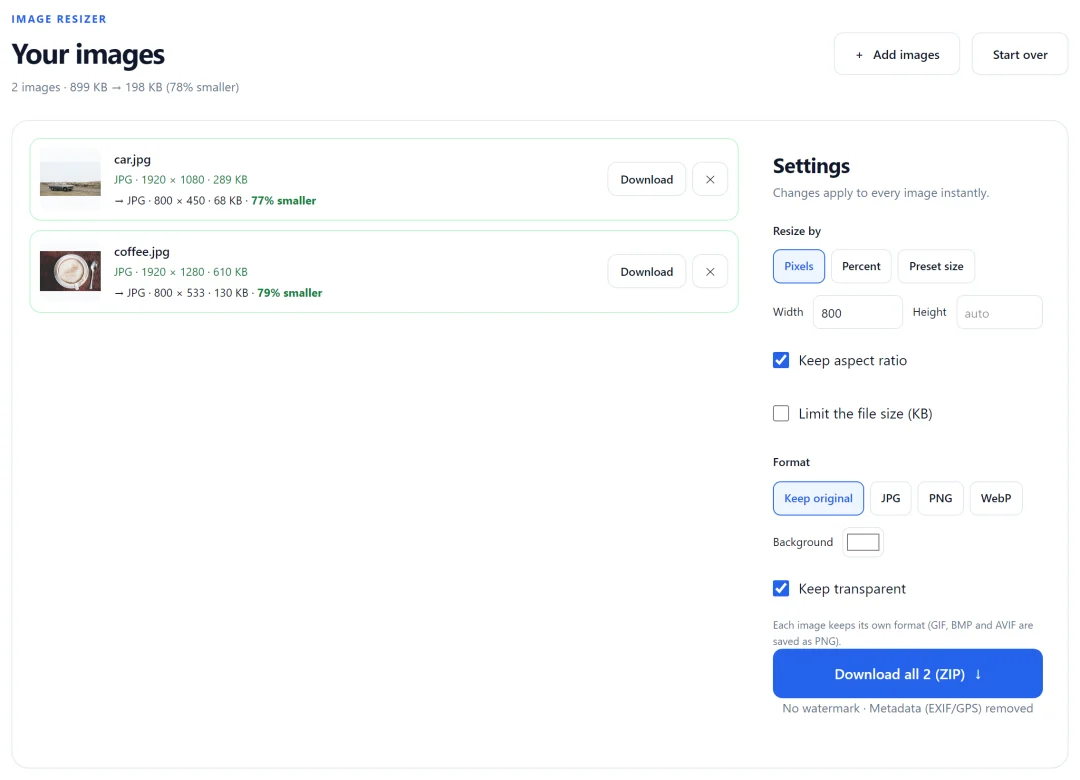
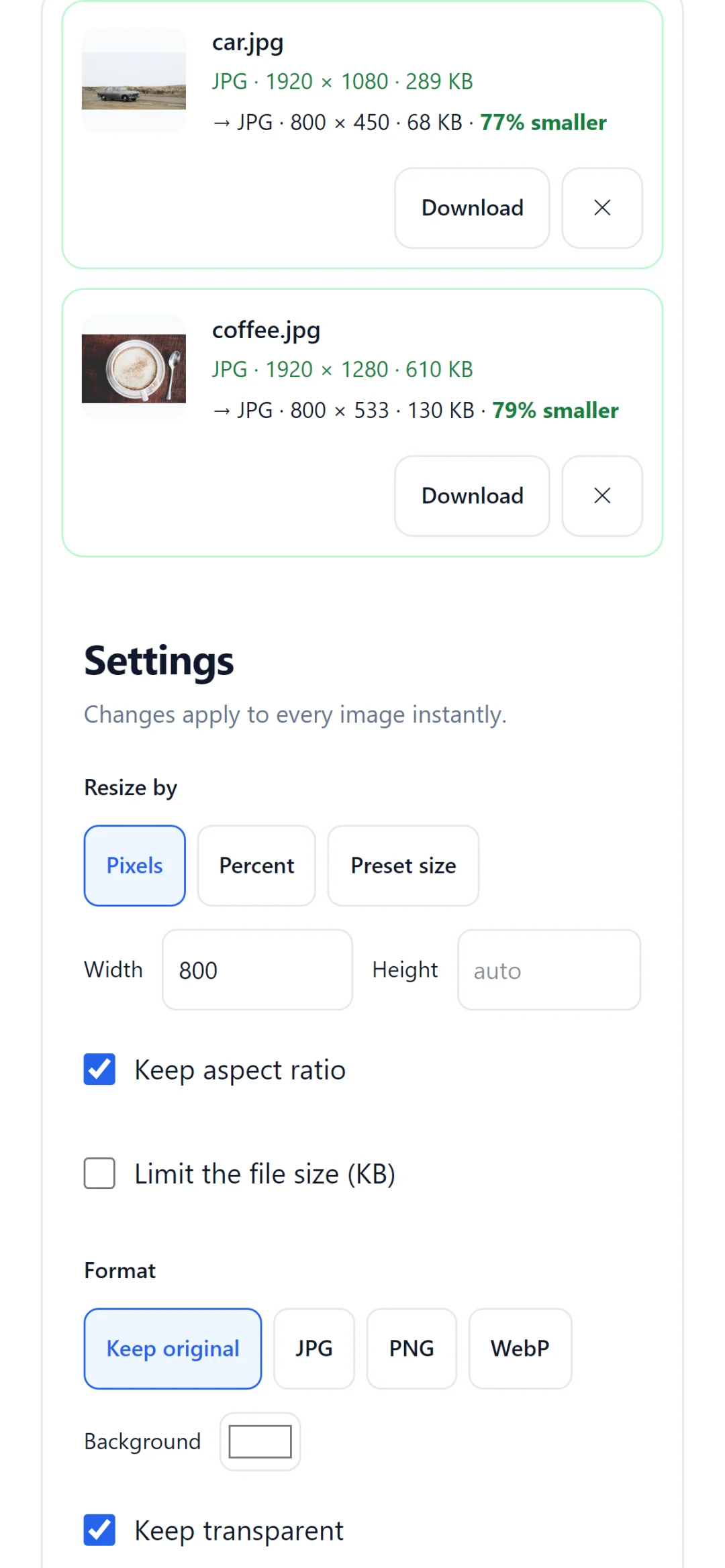
Under Resize by, pick Pixels, Percent or Preset size (see below). Every image is resized straight away, and each line shows the result, for example "→ JPG · 800 × 450 · 68 KB · 77% smaller".
Download
Keep the original format or choose JPG, PNG or WebP under Format, then download each image or Download all (ZIP).
Pixels, percent or a preset
- Pixels: type the Width or Height. With Keep aspect ratio ticked (it is, unless you untick it), the other side follows, so the photo is not stretched. In our test, width 800 turned a 1920 × 1080 photo into 800 × 450.
- Percent: move the Scale slider, for example 50 % for half the size in each direction (1920 × 1080 → 960 × 540).
- Preset size: ready-made sizes, listed below.
| Preset | Size |
|---|---|
| Instagram post | 1080 × 1080 |
| Instagram portrait | 1080 × 1350 |
| Instagram / WhatsApp story | 1080 × 1920 |
| Facebook cover | 1640 × 624 |
| YouTube thumbnail | 1280 × 720 |
| X (Twitter) post | 1600 × 900 |
| LinkedIn banner | 1584 × 396 |
| Passport size | 35 × 45 mm at 300 dpi |
| A4 portrait | A4 at 300 dpi |
Social networks change their recommended sizes from time to time and may crop or resize what you upload; check the network's own help if an exact size matters.
Fit, Fill or Stretch
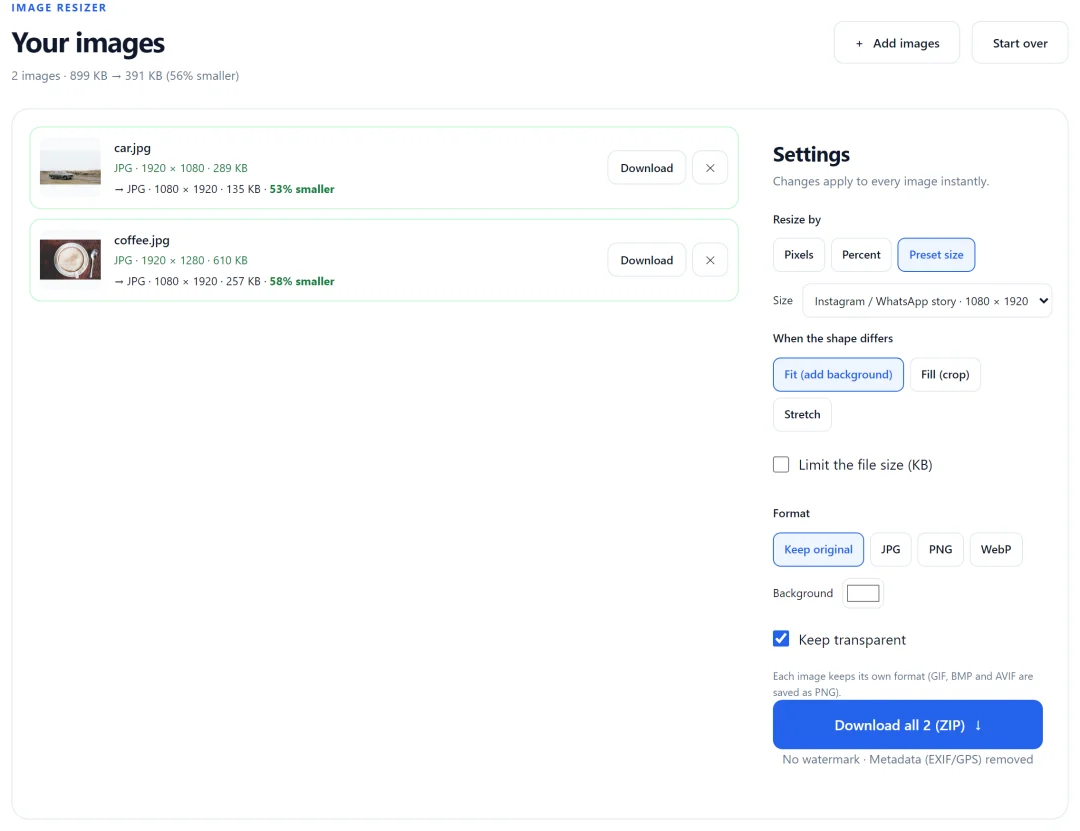
When the new size has a different shape from the photo (a wide photo for a tall story, for example), When the shape differs decides what happens:
| Choice | Result |
|---|---|
| Fit (add background) | The whole photo fits inside; the empty space is filled with a background (white in our test) |
| Fill (crop) | The photo covers the whole size; the edges that do not fit are cut off |
| Stretch | The photo is pulled to the new shape, which distorts it; rarely what you want |
Exact pixels and a size in KB (for forms)
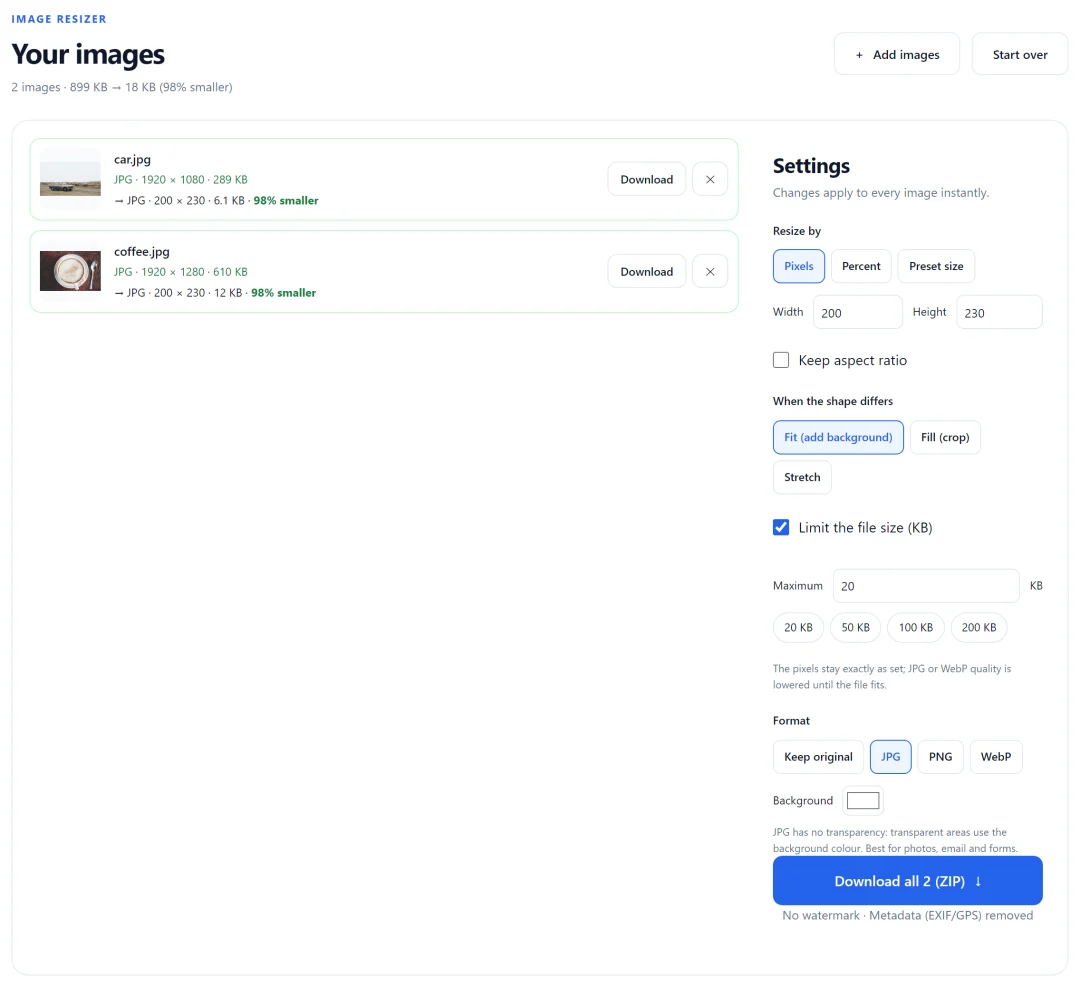
Many online forms ask for both: a photo of, say, 200 × 230 pixels that is also under 20 KB or 50 KB. Resize image does both at once:
- Under Resize by, choose Pixels, untick Keep aspect ratio and type the Width and Height the form asks for.
- Under When the shape differs, choose Fill (crop) to fill the whole size, or Fit (add background) to keep the whole photo with a white background around it.
- Choose JPG under Format (most forms ask for it).
- Tick Limit the file size (KB) and type the limit, or tap 20 KB, 50 KB, 100 KB or 200 KB.
The pixels stay exactly as you set them; only the JPG or WebP quality is lowered until the file fits. In our test, two photos of 1920 × 1080 and 1920 × 1280 became 200 × 230 JPGs of 6.1 KB and 12 KB with a 20 KB limit.
Making an image bigger
You can enlarge images (in our test, 300 % made 5760 × 3240), up to 400 % and 64 megapixels in total (about 16 on iPhone and iPad). Enlarging cannot add detail that is not in the photo, so big increases look soft. For a sharper result, start from the largest original you have.
Resize, crop or compress?
- Resize changes the number of pixels of the whole picture; with Limit the file size (KB) it also keeps the file under a limit without changing those pixels.
- Crop image cuts away parts of the picture to change its shape or focus.
- Compress image makes the file smaller in KB, for example for a form with an upload limit.
Common problems and how to fix them
The image looks squashed
Keep aspect ratio was off, or Stretch is chosen. Tick Keep aspect ratio, or choose Fit or Fill.
There are white bands around my photo
Fit adds a background to reach the exact size. Choose Fill to crop instead, or a preset with the same shape as your photo.
The file got bigger
Resizing a JPG to the same or a larger size saves it again and can make the file bigger. To make the file smaller, make the image smaller or use Compress image.
The file is still over the limit
If the line says Smallest possible at …, the photo cannot get that small at those pixels, even at the lowest quality (in our test, 4000 × 4600 pixels could not go under 242 KB). Use fewer pixels, or check that the form really asks for that many. PNG cannot be made smaller this way: with a limit, choose JPG or WebP.
Privacy
Resizing happens in your browser; your images are not uploaded (in our test, nothing was sent to the server).
Questions
How do I resize an image without stretching it?
Keep Keep aspect ratio ticked and type only the width or the height; the other side follows.
How do I resize a photo to 20 KB or 50 KB?
Type the pixels the form asks for, choose JPG, tick Limit the file size (KB) and enter the limit or tap 20, 50, 100 or 200 KB. The pixels stay as set and the quality is lowered until the file fits.
What is the difference between Fit and Fill?
Fit keeps the whole image and adds a background to reach the exact size. Fill crops the edges so the image covers the whole size with no background.
Can I resize many images at once?
Yes. Add up to 20 images; the same size is used for all of them, and you can download them as a ZIP.
Can I make an image bigger?
Yes, up to 400 % and 64 megapixels, but enlarging cannot add real detail, so large increases look soft.
Are my images uploaded?
No. Resizing runs in your browser.