Guide · Images to PDF
How to Combine Photos into One PDF (JPG to PDF)
To turn photos into one PDF, open Images to PDF, add your JPG, PNG, WebP or iPhone photos, drag them into order and click Download PDF: each photo becomes one page. You can choose the page size (A4, Letter, Legal or the photo's own size), margins, a clean scanned look, and a file-size limit for forms. The PDF is made in your browser; the photos are not uploaded.
On this page
Make a PDF from photos in four steps
Add your photos
Open Images to PDF and click Choose images, or drag, drop or paste them. You can add up to 30 pages: JPG, PNG, WebP or HEIC photos from an iPhone. Add more later with + Add pages.
Put the pages in order
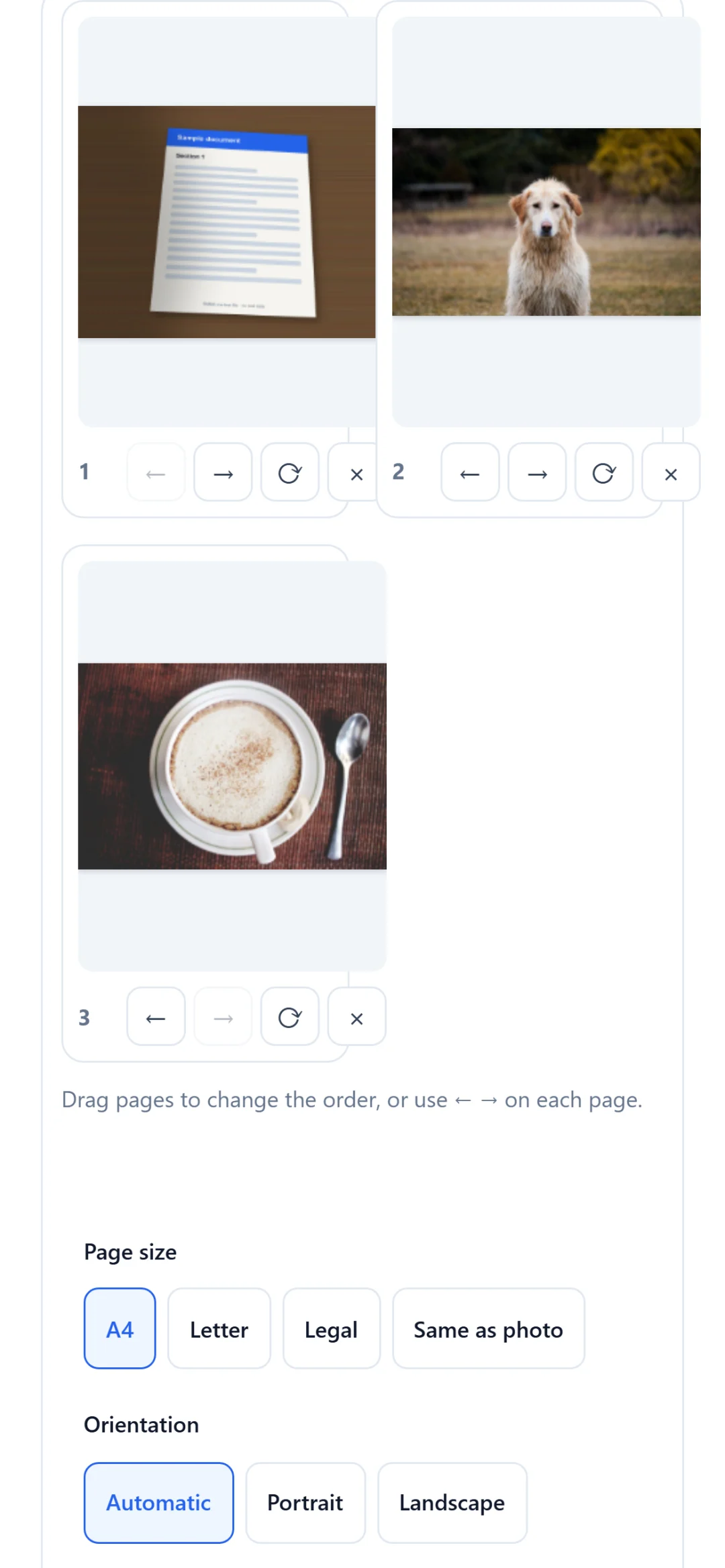
Drag the pages into order, or use ← and → on each page. Rotate turns a sideways photo, and Remove takes a page out.
Choose the page settings
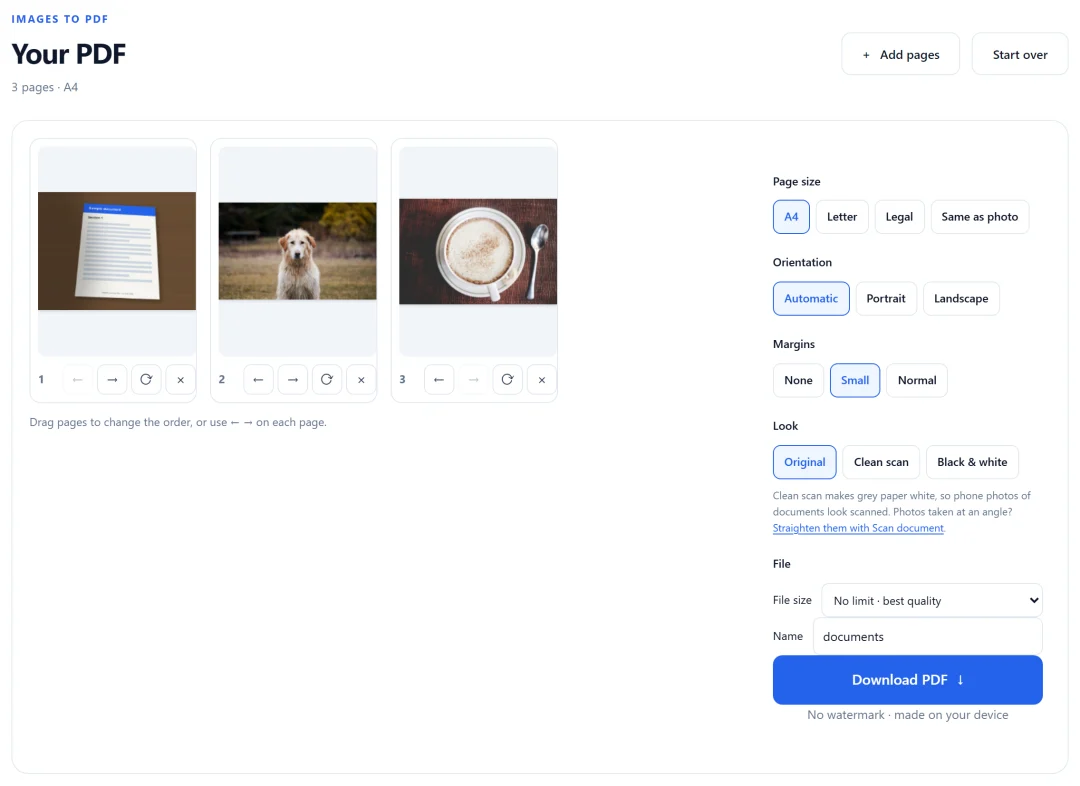
Pick the Page size, Orientation, Margins and Look (see below). The summary shows the result, for example "3 pages · A4".
Download the PDF
Type a Name ("documents" unless you change it), choose a File size if a form has a limit, and click Download PDF.
Page settings
| Setting | Choices | Starts at |
|---|---|---|
| Page size | A4, Letter, Legal, or Same as photo (each page the size and shape of its photo) | A4 |
| Orientation | Automatic (each page follows its photo), Portrait, Landscape | Automatic |
| Margins | None, Small, Normal | Small |
| Look | Original, Clean scan (grey paper becomes white, so phone photos of documents look scanned), Black & white (crispest text) | Original |
| File size | No limit · best quality, Under 300 KB, 500 KB, 1 MB, 2 MB or 5 MB | No limit |
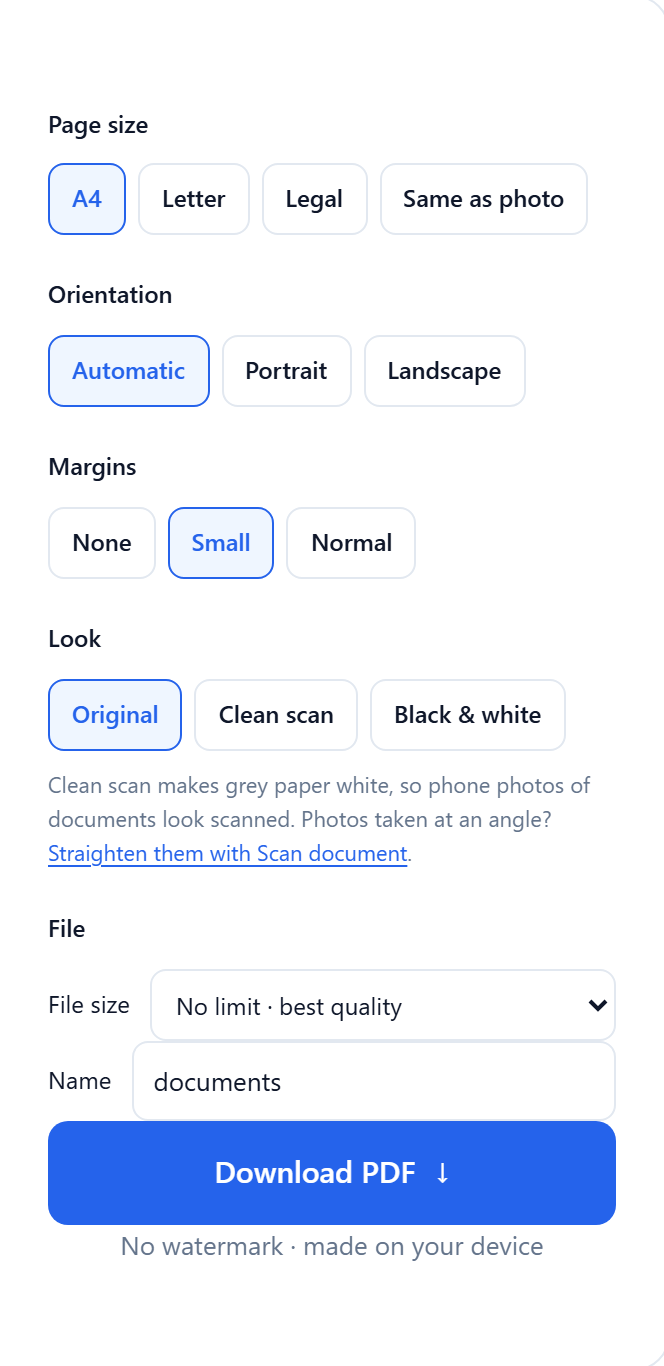
With Automatic orientation, a landscape photo gets a landscape page and a portrait photo a portrait page. In our test, three landscape photos became three landscape A4 pages.
Keep the PDF under a size limit
Choose a File size such as Under 1 MB. The tool lowers the image quality only as much as needed and tells you the final size; in our test, three photos set to "Under 300 KB" gave the message "Saved 298 KB, under 300 KB." RMBG.me counts 1 KB as 1,024 bytes; if a form that counts in thousands of bytes rejects a file right at its limit, choose the next smaller limit.
Photos of paper documents
Images to PDF puts each photo on a page as it is. If your photos of documents were taken at an angle or show the table around the paper, use Scan document instead: it finds the edges of each page and straightens it before making the PDF. Clean scan here only whitens the paper; it does not straighten the page.
Images to PDF or Merge PDF?
- Images to PDF: you start from photos and want control over the pages (size, margins, look, file size).
- Merge PDF: you start from PDFs and want to join them; a photo can be added there too, as an A4 page.
Supported files and limits
| Pages | Up to 30 |
|---|---|
| Photos you can add | JPG, PNG, WebP and HEIC (iPhone) |
| Where it happens | In your browser: photos are not uploaded (in our test, nothing was sent to the server) |
Common problems and how to fix them
A page is sideways
Click Rotate on that page before downloading.
The photos have white borders
A photo with a different shape from the page leaves space around it. Choose Page size: Same as photo so every page matches its photo exactly. Margins: None removes only the margin at the page edges.
The PDF is too big to upload
Choose a File size before downloading. If the limit is very small, use fewer pages or the Black & white look for text documents.
On a phone
Images to PDF works in your phone's browser: choose photos from your gallery, put them in order with the arrows, and download the PDF to your files.
Questions
How do I combine several photos into one PDF?
Add all the photos, drag them into order and click Download PDF. Each photo becomes one page.
How do I make the PDF smaller?
Choose a File size such as Under 1 MB before downloading. The quality is lowered only as much as needed, and the final size is shown.
Can I add iPhone photos?
Yes. HEIC photos from iPhones are converted in your browser along with JPG, PNG and WebP.
What page size should I use?
A4 in most countries and Letter in the US and Canada, or whatever the form asks for. Same as photo keeps each page the shape of its photo, with no white space.
Are my photos uploaded?
No. The PDF is made in your browser. In our test, nothing was sent to the server.