Guide · Scan document
How to Scan a Document with Your Phone Camera (No App)
To scan a document with your phone, open Scan document in the phone's browser, choose Document, press Scan with camera and photograph each page. RMBG.me finds the edges of the page, straightens it and makes the paper white, and you download one PDF or JPG images. No app is needed, and the photos are processed on your phone.
On this page
What you need
- A phone (or a computer) with a camera and an up-to-date browser. Allow the camera when the browser asks.
- The pages, in good light, on a darker surface than the paper, so the edges are easy to find.
- Or photos you already have: Choose photos accepts JPG, PNG and HEIC, up to 50 pages in one scan.
Scan a document in five steps
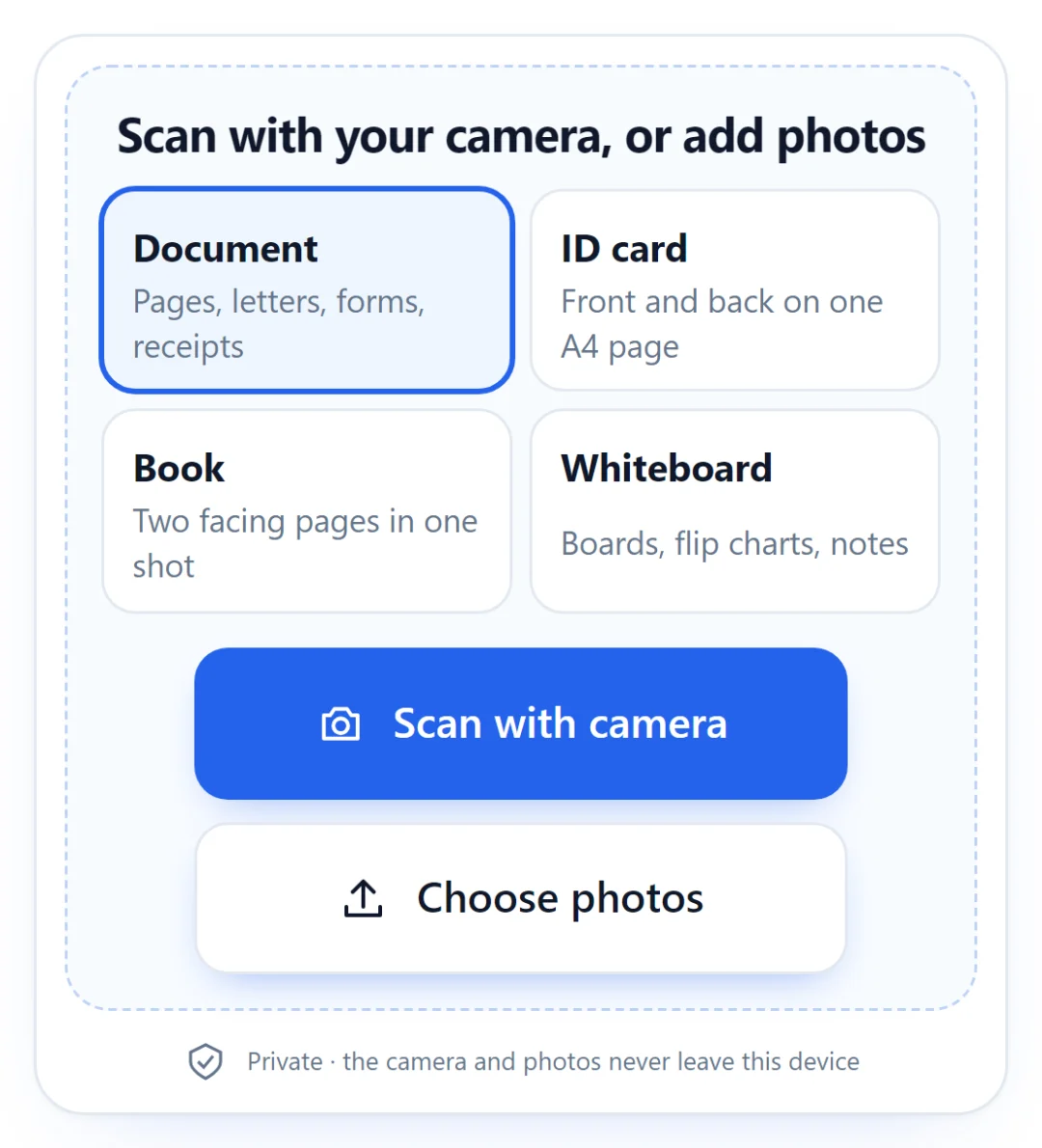
Choose what you are scanning
Open Scan document and pick Document (pages, letters, forms, receipts), ID card (front and back on one A4 page), Book (two facing pages in one shot) or Whiteboard (boards, flip charts, notes).
Take the photos
Press Scan with camera. The camera opens full screen and outlines the page it sees. Press the shutter for each page, or switch on Auto to capture a page as soon as you hold it steady; then show the next page. The counter shows how many pages you have. Press Done when you have them all; the camera turns off. Already have photos? Use Choose photos instead.
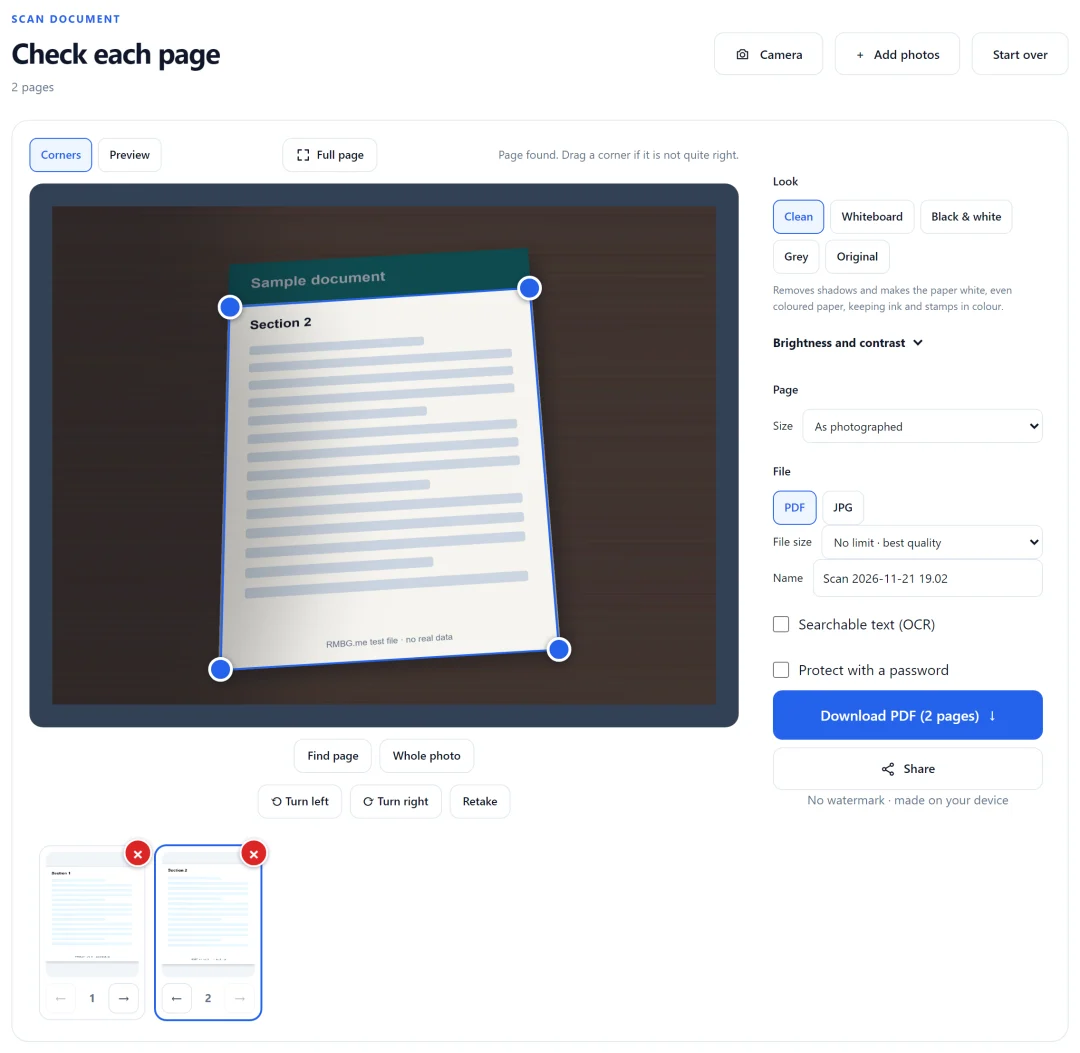
Check each page
Each page shows "Page found. Drag a corner if it is not quite right." Drag a corner onto the page's corner if needed. Find page looks again, Whole photo keeps the full picture, ⟲ Turn left and ⟳ Turn right turn the page, and Retake replaces it with a new photo.
Pick a look
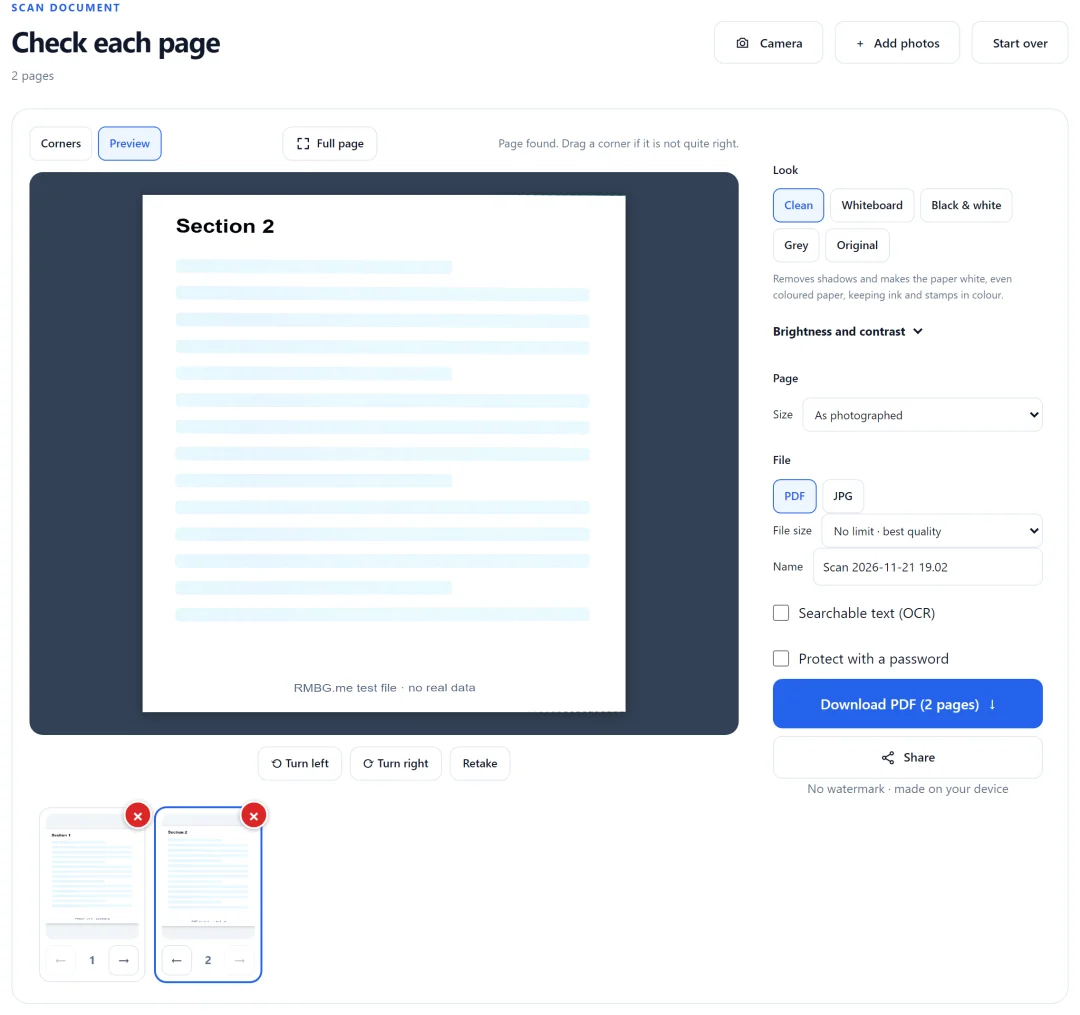
Clean is selected for you. Choose another look for a whiteboard, a photo or a page with pencil (see the table below). Brightness and Contrast fine-tune it.
Save the scan
Choose PDF (all pages in one file) or JPG (one image per page; several pages come as a ZIP), and click Download PDF. The button shows the page count, for example "Download PDF (2 pages)". On a phone you can also use Share to send the file straight to another app.
Choose a look
| Look | What it does | Best for |
|---|---|---|
| Clean | Removes shadows and makes the paper white, even coloured paper, keeping ink and stamps in colour | Most documents, forms and letters |
| Whiteboard | Turns the board white and makes faint marker strokes dark and bright | Whiteboards and flip charts |
| Black & white | Crisp black text on white, the smallest files | Printing, faxing, text-only pages |
| Grey | Shades of grey without colour | Pages with pencil or photos |
| Original | Straightened only, with the colours as photographed | When colours must stay exactly as they are |
Options when you save
| Option | Choices |
|---|---|
| Page size | As photographed, A4, US Letter or US Legal. In our test, A4 gave true A4 pages (210 × 297 mm). |
| File | PDF, or JPG (one image per page) |
| File size | No limit · best quality, Under 200 KB, Under 500 KB, Under 1 MB or Under 2 MB. The best quality that fits is kept; in our test a 2-page scan set to "Under 200 KB" came out at 155 KB. |
| Name | The file name, "Scan" with the date and time unless you change it |
| Searchable text (OCR) | Reads the text so the PDF can be searched, selected and copied. 48 languages, English unless you choose another. The language data is downloaded from RMBG.me the first time; the reading happens on you |
| Protect with a password | Encrypts the PDF with AES-256. Keep the password safe: it cannot be recovered. |
Scan an ID card, a book or a whiteboard
- ID card: scan the front, then the back. Both sides are placed on one A4 page at their real size; in our test, a card came out 85.6 × 54 mm, the size of a bank card. This is how photocopies for forms are usually made.
- Book: photograph the open book two pages at a time. Each photo becomes two pages, left and right.
- Whiteboard: photograph the board; choose the Whiteboard look so faint marker becomes easy to read.
Tips for a clean scan
- Put the page on a darker, plain surface; a white page on a white table is hard to outline.
- Hold the phone straight above the page, not at an angle, and keep it still for a moment.
- Avoid your own shadow: light from the side or above works better than light from behind you.
- If the tool warns that a photo looks blurry, take it again with the phone held still, or keep it if the text reads well.
- For forms with an upload limit, choose a File size before downloading instead of shrinking the PDF later.
Common problems and how to fix them
The camera does not open
Allow the camera when the browser asks. If you said no earlier, allow it in the browser's site settings and reload the page, or use Choose photos with photos from your camera app.
The page outline is wrong
Drag each corner onto the page's corner, press Find page to look again, or Whole photo to keep everything. If the tool says "The corners cross each other", drag each corner onto its own corner of the page.
The PDF is too big for the form
Choose a File size, such as Under 500 KB, and download again. Black & white also makes much smaller files for text-only pages.
I can't search the text in the PDF
Tick Searchable text (OCR) and choose the document's language before downloading. Handwriting and very small or blurry text may not be read correctly.
Limits and privacy
| Pages | Up to 50 in one scan |
|---|---|
| Photos you can add | JPG, PNG and HEIC |
| Where it happens | On your device: the camera picture and the photos are not uploaded (in our test, no photo was sent to the server). The camera turns off when you press Done. |
Questions
Do I need to install an app?
No. Scan document works in the phone's browser. Allow the camera when asked.
Can I scan several pages into one PDF?
Yes. Take one photo per page (or switch on Auto), press Done, and download one PDF with all the pages, up to 50.
Is my document uploaded?
No. The camera picture, the photos and the PDF stay on your device. In our test, scanning and downloading sent no photo to the server.
How do I scan both sides of an ID card onto one page?
Choose ID card, scan the front and then the back. Both sides are placed at real size on one A4 page.
Can I make the text in the scan searchable?
Yes. Tick Searchable text (OCR) and choose the language. The text is added invisibly over each page so it can be searched, selected and copied.
How do I make the scan smaller for an upload form?
Choose a File size such as Under 500 KB before downloading. The best quality that fits is kept.